
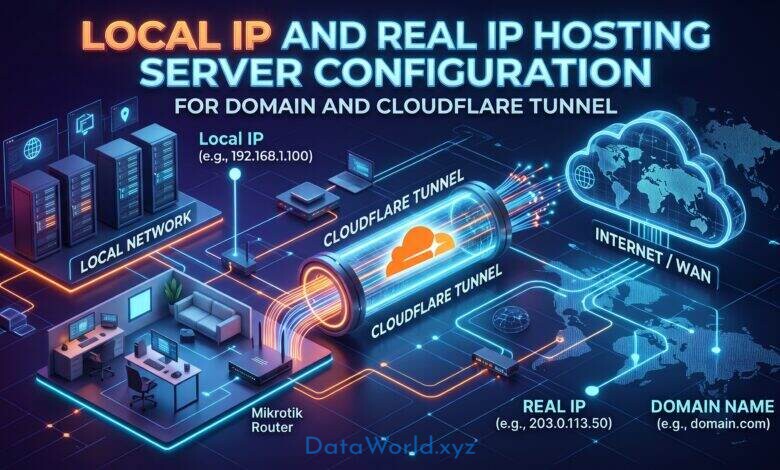
Local IP and Real IP Hosting Server Configuration For Domain and Cloudflare Tunnel
1. Understand the Difference Between IPs First
- Local IP (Private IP): For example,
192.168.1.100. This is only used by computers inside your office router’s network to identify each other. This IP does not exist on the public internet because millions of offices worldwide use the exact same local IPs. - ISP’s Main IP (Shared Public IP): When you search “What is my IP” in a browser, the IP shown is your ISP’s main IP. Most ISPs use CGNAT technology to share a single main IP among hundreds of customers.
- Real IP (Dedicated Public IP): This is a unique public IP address assigned exclusively to your office router; no one else shares it.
2. Why Won’t the Server Show If You Add the Main IP to the Domain?
- If you put the Local IP (
192.168.x.x) into your domain’s DNS, the internet won’t know which building’s 5th floor you are referring to. As a result, the site won’t load at all. - If you put the ISP’s Main IP into the domain, a visitor’s request will successfully reach your ISP’s main gate (server). However, since there are 500 other customers under that same main IP, the ISP’s router won’t know which specific customer should receive the request. The connection will be blocked right there, and your server won’t show up.
- Additionally, main IPs are usually Dynamic—meaning they change periodically. Once the IP changes, the domain will stop working anyway.
3. How to “Merge” a Local IP and a Public IP?
- Get a Real IP: Contact your ISP to get a dedicated Real IP for a small additional monthly fee.
- Connect the Domain: Go to your domain’s DNS settings and put that Real IP into the
A Record. - Port Forwarding on the Router (Merging): Log in to your office router, go to the Port Forwarding option, and configure a rule stating— “If anyone from outside hits port
80or443(web server ports) of my Real IP, forward them directly to my server’s Local IP (192.168.x.x).”
4. Is There Any Alternative Without a Real IP? (Free Solution)
- How it works: You add your domain to Cloudflare and install a small lightweight software (
cloudflared) on your office server. This creates a secure, private tunnel directly from your local server to Cloudflare. - Benefits: It requires no Real IP, eliminates the hassle of router port forwarding, and is completely free. Your server will go live on your domain even over your ISP’s shared IP.
2
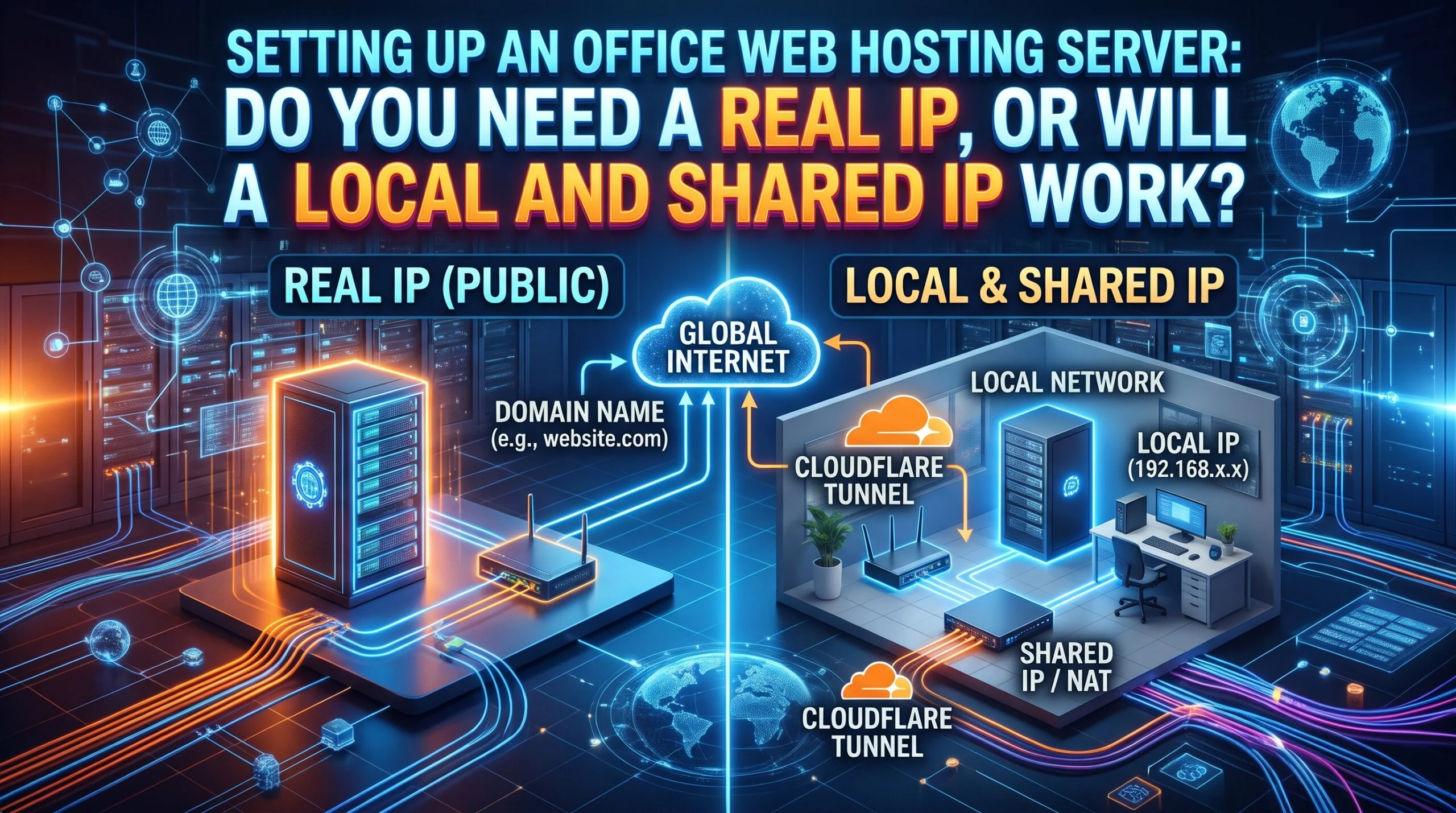
Setting Up an Office Web Hosting Server: Do You Need a Real IP, or Will a Local and Shared IP Work?
When setting up a local server in an office environment, a common question arises: Can you merge a local IP with the ISP’s main shared IP to make the server accessible via a domain, or is a dedicated Real IP strictly necessary?
The short answer is no—you cannot make your local server publicly accessible through a domain using only a local IP and your ISP’s main (shared) IP. To host a server accessible from the outside world, you must either obtain a dedicated Real IP (Public Static IP) from your ISP or use an alternative tunneling method.
Below is a complete guide explaining how IP addresses work, why a Real IP is crucial for web hosting, and how you can set up your server properly.
1. Understanding the Difference Between IP Addresses
Before configuring a server, it is essential to understand the three types of IP addresses involved:
– Local IP (Private IP): An address such as 192.168.1.100 assigned by your office router. It only allows devices within your office network to communicate with each other. It has no direct existence on the public internet because millions of offices worldwide use the exact same local IP ranges.
– ISP’s Main IP (Shared Public IP): When you search “What is my IP” on Google, the address shown is your ISP’s main IP. Most ISPs use CGNAT (Carrier-Grade NAT) technology to share a single public IP among hundreds of customers.
– Real IP (Dedicated Public Static IP): A unique public IP address assigned exclusively to your office router. No other user shares this address, and it remains permanent.
2. Why Adding the ISP’s Main IP to a Domain Will Not Work
Imagine a 20-story building where the main gate’s address is the ISP’s Main IP, and your office server is Room 502 on the 5th floor (the Local IP).
First, if you put your Local IP (192.168.x.x) into your domain’s DNS settings, the global internet will not know which building’s Room 502 to look for, and the site will fail to load.
Second, if you put your ISP’s Main Shared IP into the domain’s DNS, the visitor’s request will reach the ISP’s main gateway. However, because hundreds of other customers share that same IP, the ISP’s router will not know which customer’s local network should receive the incoming request. As a result, the connection gets blocked, and your server will not show up. Furthermore, shared IPs are usually dynamic, meaning they change periodically, which breaks domain configurations.
3. Why a Real IP is Mandatory for a Full Web Hosting Server
If your goal is to build a complete, professional web hosting server (using control panels like cPanel, CyberPanel, or aaPanel to host multiple websites, domains, and email accounts), getting a Real IP from your ISP is mandatory for the following reasons:
– Opening Multiple Ports: A full hosting server requires more than just ports 80 (HTTP) and 443 (HTTPS) for loading websites. It also needs open ports for FTP (Port 21) to upload files, SSH (Port 22) for terminal access, control panel access (such as Port 2083 for cPanel or Port 8090 for CyberPanel), and email services (Ports 25, 465, and 587).
– Custom Nameservers: To create white-label nameservers like ns1.yourdomain.com and ns2.yourdomain.com, domain registrars require dedicated Public IP addresses.
– Email Deliverability: Running a mail server requires a clean, dedicated Real IP along with an rDNS (Reverse DNS / PTR Record) configured by your ISP so that outgoing emails do not get blocked or sent to spam folders.
4. How to Connect (Merge) a Local IP and a Real IP for Hosting
In networking, linking your public Real IP to your server’s Local IP is done through Port Forwarding. Once you have a Real IP, follow these four steps to make your hosting server live:
Step 1: Obtain a Real IP from Your ISP
Contact your internet service provider and request a dedicated static Real IP. Ensure that they do not block incoming ports (especially ports 80, 443, and 25).
Step 2: Set a Static Local IP for Your Server
To prevent your server PC’s local IP from changing whenever the office router restarts, go to your router’s DHCP Reservation settings and lock a permanent local IP (for example, 192.168.1.100) to your server’s MAC address.
Step 3: Configure Port Forwarding or DMZ in the Router
Log into your office router’s admin panel and navigate to the Port Forwarding section. Set up rules so that any external traffic hitting your Real IP on ports 80, 443, 21, 22, or your control panel port is forwarded directly to your server’s local IP (192.168.1.100). Alternatively, if you want to open all ports to the server at once, you can enter your server’s local IP into the router’s DMZ (Demilitarized Zone) setting.
Step 4: Connect Your Domain via DNS
Go to your domain registrar’s DNS management panel and point the A Record of your domain to your Real IP. Your local office server is now accessible worldwide.
5. Alternative Solution: Hosting Websites Without a Real IP (Cloudflare Tunnel)
If your ISP does not provide a Real IP, or if you want to avoid paying extra monthly fees, you can still host websites (such as WordPress, PHP, or Node.js applications) using Cloudflare Tunnel.
How It Works:
You connect your domain to a free Cloudflare account and install a lightweight piece of software called cloudflared on your local server. This software creates a secure, outbound encrypted tunnel directly from your local server to Cloudflare’s global network.
Pros and Cons Compared to a Real IP:
– Website Hosting (HTTP/HTTPS): Fully supported on both Real IP and Cloudflare Tunnel.
– Control Panels (cPanel/CyberPanel): All features work on a Real IP, whereas only web-based access works via Cloudflare Tunnel.
– Email Server & Standard FTP: Fully supported on a Real IP, but will not work over a standard Cloudflare Tunnel.
– Security: With a Real IP, you must manually manage your firewall. Cloudflare Tunnel is inherently safer because your server’s public IP remains completely hidden from attackers, and no router ports need to be opened.
– Cost: A Real IP requires a monthly fee paid to your ISP, while Cloudflare Tunnel is completely free.
6. Practical Precautions for Running an Office Hosting Server
Before using an office computer as a live production hosting server, keep two critical factors in mind:
1. Power and Internet Redundancy: A hosting server must remain online 24/7. If the office experiences a power outage or an ISP fiber cut, all hosted websites will immediately go offline. Investing in a reliable Online UPS/IPS and maintaining a secondary backup ISP connection is essential.
2. Server Security and Firewalls: Exposing a local server to the internet via Port Forwarding or DMZ makes it a target for automated bots and hackers. Always enable a robust firewall on the server (such as UFW or CSF), disable root password logins in favor of SSH keys, and keep all server software updated.
3
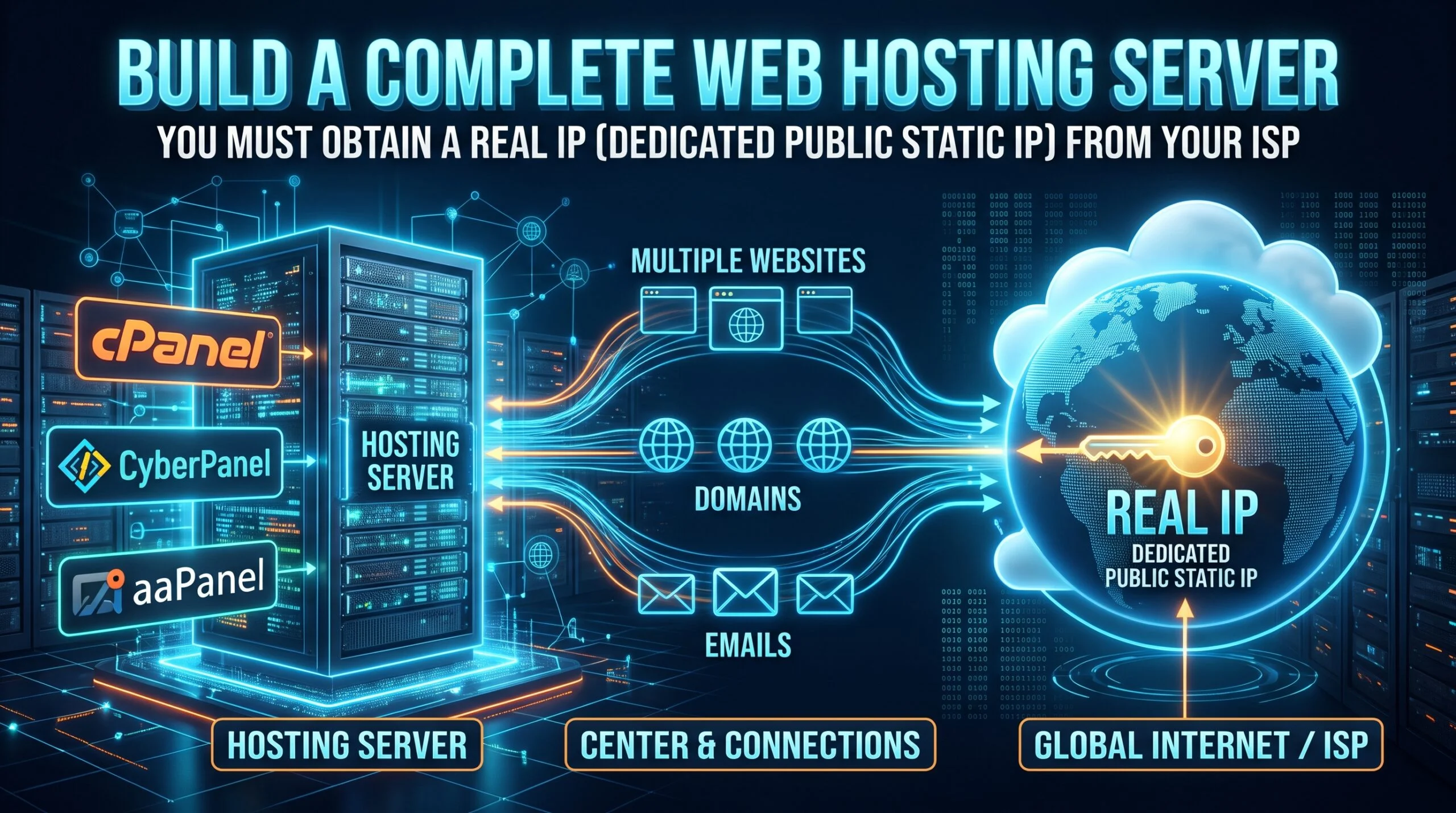
If you want to build a complete web hosting server (using control panels like cPanel, CyberPanel, or aaPanel to host multiple websites, domains, and emails), you must obtain a Real IP (Dedicated Public Static IP) from your ISP.
1. Why is a Real IP Mandatory for a Full Hosting Server?
- Keeping Multiple Ports Open: A hosting server does not just need Ports
80(HTTP) and443(HTTPS) to display websites; it also requires open ports for file uploads via FTP (Port 21), server control via SSH (Port 22), control panels (e.g.,2083for cPanel,8090for CyberPanel), and Email Services (Ports 25, 465, 587). - Custom Nameservers: If you want to create custom nameservers like
ns1.yourdomain.comandns2.yourdomain.com, you cannot register them in your domain registrar panel without a Real IP. - Email Server: Having a Real IP and setting up rDNS (Reverse DNS / PTR Record) through your ISP is mandatory for sending and receiving emails reliably.
2. Steps to Turn Your Office Server into a Hosting Server Using a Real IP
| Step | Action Required | Detailed Task |
| 1. Get a Real IP | Contact your ISP | Ask your internet provider for a dedicated static Real IP (in Bangladesh, this usually costs an extra 200–500 BDT per month) and ensure all incoming ports remain open. |
| 2. Static Local IP | Fix the Server PC’s IP | To prevent your server PC’s local IP from changing when the router restarts, bind the local IP (e.g., 192.168.1.100) using DHCP Reservation in your router settings. |
| 3. Merge IPs in Router | Port Forwarding or DMZ | Log into your router’s admin panel, go to Port Forwarding, and forward the necessary ports (80, 443, 21, 22, 8090, etc.) to your local IP (192.168.1.100). Alternatively, to open all ports at once, go to the DMZ option and enter your server’s local IP directly. |
| 4. Connect Domain | DNS Setup | Go to your domain’s DNS management panel and point the A Record to your Real IP. Your server will now be live worldwide! |
3. Can Websites Be Hosted Without a Real IP? (Cloudflare Tunnel)
| Feature / Benefit | Real IP (Real IP + Port Forwarding) | Without Real IP (Cloudflare Tunnel) |
| Website Hosting (HTTP/HTTPS) | Fully supported | Fully supported |
| cPanel / CyberPanel Usage | All features will work | Limited (only web access will work) |
| Email Server & FTP | Will work | Will not work |
| Security | Must configure firewall manually | More secure (server’s actual IP remains hidden) |
| Cost | 200–500 BDT/month paid to ISP | Completely free |
4. Practical Precautions for Running an Office Hosting Server
- Power and Internet Backup: A hosting server must run 24/7. If the power goes out at the office or the ISP connection drops, all your websites will go offline. Therefore, having a reliable Online UPS / IPS and, if possible, two different ISP connections is highly recommended.
- Hacking and Security: Enabling DMZ or Port Forwarding on your router exposes your server directly to the internet. You must use a strong firewall on the server (such as
UFWorCSF) and set strong passwords on your router.
Basics: Local IP vs. ISP Main IP vs. Real IP
- Local IP (Private IP): Such as
192.168.1.100. This is only used by computers inside your office router’s network to identify each other. This IP does not exist on the public internet because millions of offices worldwide use the exact same local IP ranges. - ISP’s Main IP (Shared Public IP): When you search “What is my IP” in a browser, the IP shown is your ISP’s main IP. Most ISPs use CGNAT technology to share a single main IP among hundreds of customers.
- Real IP (Dedicated Public IP): This is a public IP assigned exclusively to your office router; no one else shares it.
- If you put the Local IP (
192.168.x.x) in the domain’s DNS, the internet won’t know which building’s 5th floor it belongs to, so the site won’t load. - If you put the ISP’s Main IP in the domain, the visitor’s request will reach the ISP’s main gate. However, because there are 500 other customers under that same IP, the ISP’s router won’t know who should receive the request. The connection will be blocked right there.
- Furthermore, shared main IPs are usually Dynamic—meaning they change periodically, which would break your domain connection anyway.
- Obtain a dedicated Real IP from your ISP.
- Point your domain’s
A Recordto that Real IP. - Configure Port Forwarding in your office router to instruct it: “Whenever someone from outside hits port
80or443of my Real IP, forward them directly to my server’s Local IP (192.168.x.x).”
4
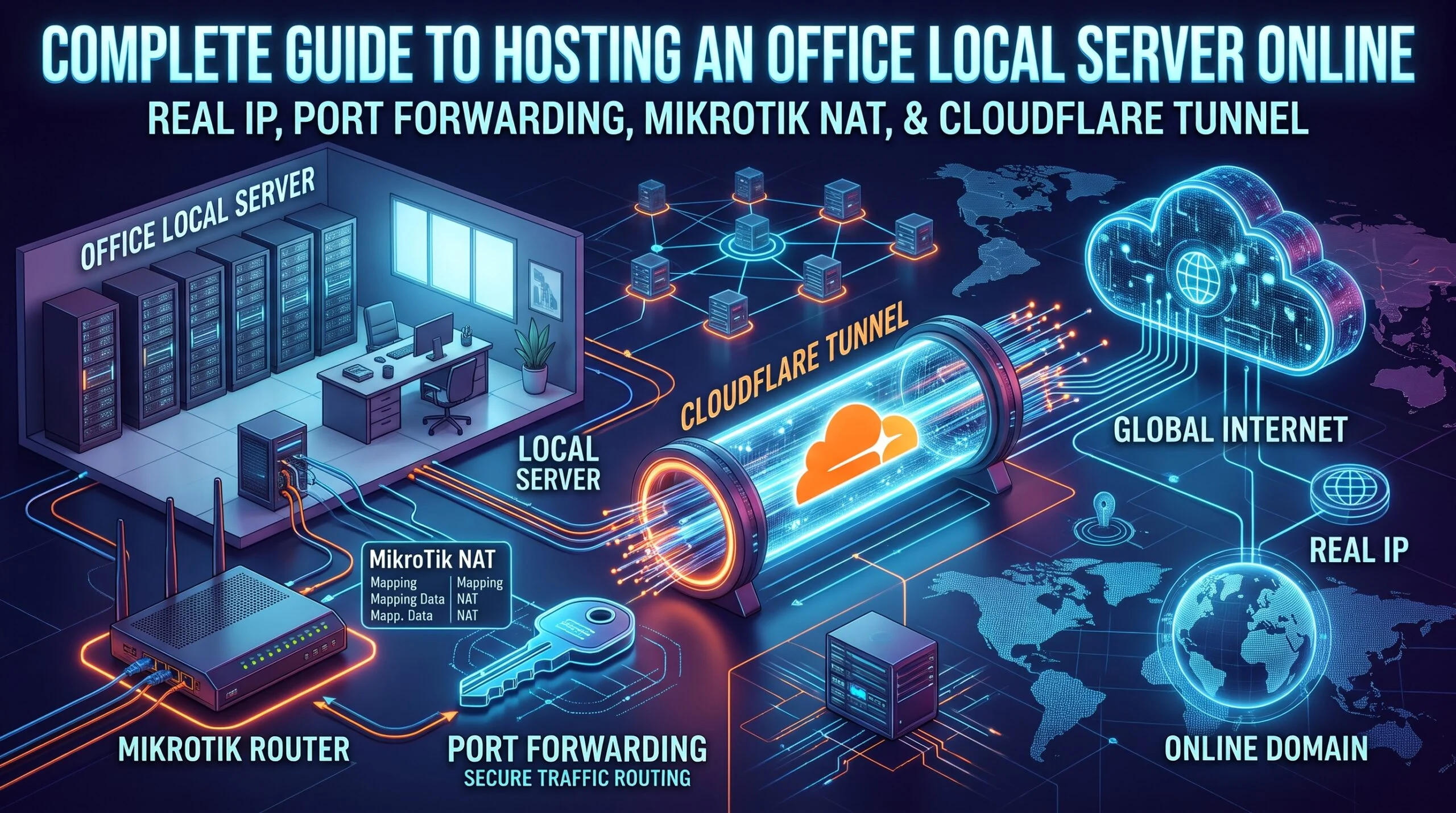
Complete Guide to Hosting an Office Local Server Online: Real IP, Port Forwarding, MikroTik NAT, and Cloudflare Tunnel
Part 1: Understanding IP Addresses and Why Shared IPs Fail
1. The Three Types of IP Addresses
- Local IP (Private IP): Examples include
192.168.1.100or192.168.88.100. This address is assigned by your office router to identify devices within your local network (LAN). It has no direct visibility on the global internet because millions of offices worldwide use the exact same local IP ranges. - ISP Main IP (Shared Public IP / CGNAT): When searching “What is my IP” on Google, the displayed address is your ISP’s public IP. Most ISPs use CGNAT (Carrier-Grade NAT) to share a single public IP across hundreds of customers.
- Real IP (Dedicated Public Static IP): A unique public IP address assigned exclusively to your office router. No other user shares this IP, and it never changes dynamically.
2. Why Adding a Local or Shared IP to a Domain Does Not Work
- If you point a domain to a Local IP (
192.168.x.x): The global internet does not know which building that room belongs to, so the connection fails immediately. - If you point a domain to the ISP’s Shared Main IP: Visitor requests will reach the main gate (the ISP’s core router), but because 500 other customers share that same IP, the ISP’s router will not know which customer holds the server. The incoming request gets dropped.
- Dynamic Changes: Shared IPs change periodically, which breaks domain DNS configurations.
Part 2: Requirements for a Full Web Hosting Server
1. Why a Real IP is Required for Full Hosting
- Multiple Open Ports: A hosting server requires more than just web ports
80(HTTP) and443(HTTPS). It requires open access for FTP (21), SSH (22), Control Panels (2083for cPanel,8090for CyberPanel,8888for aaPanel), DNS (53), and Email Services (25, 465, 587, 993). - Custom Nameservers: Registering custom child nameservers (such as
ns1.yourdomain.comandns2.yourdomain.com) at a domain registrar requires a dedicated Real IP. - Email Deliverability: Running a mail server requires a Real IP with rDNS (Reverse DNS / PTR Record) configured by your ISP.
2. Real IP vs. Cloudflare Tunnel Comparison
| Feature / Requirement | Real IP + Port Forwarding | Cloudflare Tunnel (No Real IP) |
| Website Hosting (HTTP/HTTPS) | Fully Supported | Fully Supported |
| Control Panels (cPanel/CyberPanel) | All features work natively | Web access works; non-HTTP services are limited |
| Email Server & Standard FTP | Fully Supported | Not Supported |
| Custom Nameservers (ns1/ns2) | Supported | Not Required (Uses Cloudflare DNS) |
| Security | Requires manual firewall management | High (Hides actual server IP and blocks direct attacks) |
| Monthly Cost | ISP charges a monthly fee for Real IP | 100% Free |
3. Hardware and Infrastructure Precautions
- Power & Internet Redundancy: Hosting servers must run 24/7. Ensure your office has a reliable Online UPS/IPS and, ideally, a secondary backup ISP connection.
- Firewall Security: Exposing a local server via Port Forwarding or DMZ opens it to external traffic. Always keep a server firewall (
UFWorCSF) active and enforce strong passwords.
Part 3: Connecting Real IP and Local IP on Standard Routers
Step 1: Verify Your Real IP
- Log in to your router admin panel (typically
192.168.0.1or192.168.1.1). - Go to the Status or WAN / Internet section and note the WAN IP Address.
- Search
What is my IPon Google. - Compare: If the WAN IP inside your router matches the IP shown on Google, your Real IP is active. If they differ, your connection is still behind ISP CGNAT.
Step 2: Set a Static Local IP for the Server
- Navigate to DHCP $\rightarrow$ Address Reservation (or Static Lease).
- Click Add New.
- Enter your server PC’s MAC Address and assign a fixed local IP (e.g.,
192.168.1.100). - Save and reboot the network connection.
Step 3: Configure Port Forwarding or DMZ
Option A: Port Forwarding (Recommended & Secure)
- Go to Forwarding / NAT Forwarding $\rightarrow$ Virtual Servers or Port Forwarding.
- Click Add New and map the required ports to your server’s local IP (
192.168.1.100):
| Service Type | External & Internal Port | Protocol |
| Web Server (HTTP & HTTPS) | 80, 443 | TCP |
| SSH (Terminal Access) | 22 | TCP |
| FTP (File Transfer) | 21 | TCP |
| DNS (Custom Nameservers) | 53 | TCP/UDP (Both) |
| Hosting Control Panels | 8090 (CyberPanel) / 2083 (cPanel) / 8888 (aaPanel) | TCP |
| Email Server Ports | 25, 465, 587, 993 | TCP |
Option B: DMZ Setup (Forwards All Ports at Once)
- Go to Forwarding or Advanced $\rightarrow$ DMZ.
- Set DMZ Status to Enable.
- Enter your server’s local IP (
192.168.1.100) in the DMZ Host IP Address field and click Save.
Step 4: Allow Ports Through the Server OS Firewall
- Ubuntu/Linux: Run
sudo ufw allow 80/tcpandsudo ufw allow 443/tcp(or let your hosting control panel manage the firewall). - Windows Server: Open Windows Defender Firewall with Advanced Security $\rightarrow$ Inbound Rules and allow the required ports.
Step 5: Test and Connect Domain
- Visit an open port checker tool (such as
[yougetsignal.com/tools/open-ports/](https://yougetsignal.com/tools/open-ports/)), enter your Real IP and port80, and verify that the port shows as Open. - Go to your domain’s DNS management panel and add an A Record pointing
@to your Real IP.
Part 4: Port Forwarding (DST-NAT) & Hairpin NAT in MikroTik Router (Winbox)
- Real IP:
103.10.20.30 - Server Local IP:
192.168.88.100 - Office LAN Subnet:
192.168.88.0/24
Step 1: Make Server Local IP Static in MikroTik
- Open Winbox and go to IP $\rightarrow$ DHCP Server $\rightarrow$ Leases.
- Double-click your server’s IP lease, click Make Static, and click OK.
Step 2: Configure Port Forwarding (DST-NAT) via Winbox
- Navigate to IP $\rightarrow$ Firewall $\rightarrow$ NAT and click the
+(Add) button. - Under the General tab:
- Chain:
dstnat - Dst. Address:
103.10.20.30(Your Real IP) - Protocol:
6 (tcp) - Dst. Port:
80,443,21,22,8090(Add all necessary ports separated by commas)
- Under the Action tab:
- Action:
dst-nat - To Addresses:
192.168.88.100(Your Server Local IP) - To Ports: Leave blank.
- Click Apply and OK. (Create a second rule with Protocol
17 (udp)and Dst. Port53,443if you run DNS and HTTP/3).
Step 3: Configure Hairpin NAT (Access Server via Domain from Inside Office LAN)
- In IP $\rightarrow$ Firewall $\rightarrow$ NAT, click
+(Add). - Under the General tab:
- Chain:
srcnat - Src. Address:
192.168.88.0/24(Office LAN Subnet) - Dst. Address:
192.168.88.100(Server Local IP) - Protocol:
6 (tcp)
- Under the Action tab:
- Action:
masquerade
- Click Apply and OK, then drag this rule to the top of your NAT rules list.
Step 4: One-Click MikroTik Terminal Script (Alternative to Manual GUI Setup)
/ip firewall nat
# 1. TCP Port Forwarding (Web, FTP, SSH, CyberPanel/cPanel, Mail)
add chain=dstnat dst-address=103.10.20.30 protocol=tcp dst-port=80,443,21,22,25,465,587,993,8090,2083,2087 action=dst-nat to-addresses=192.168.88.100 comment="Hosting_Server_TCP"
# 2. UDP Port Forwarding (DNS & QUIC/HTTP3)
add chain=dstnat dst-address=103.10.20.30 protocol=udp dst-port=53,443 action=dst-nat to-addresses=192.168.88.100 comment="Hosting_Server_UDP"
# 3. Hairpin NAT (Access from inside Office LAN)
add chain=srcnat src-address=192.168.88.0/24 dst-address=192.168.88.100 action=masquerade comment="Hairpin_NAT"
Step 5: Disable MikroTik’s Conflicting Default Services
80, 21, and 22 by default for its own management, which conflicts with your hosting server and poses a security risk.- Go to IP $\rightarrow$ Services.
- Select
www(80),ftp(21),ssh(22),telnet(23), andapi, then click the redX(Disable) button. Keep onlywinbox(8291) active.
Part 5: Hosting Without a Real IP Using Cloudflare Tunnel
Prerequisites
- A domain name added to a free Cloudflare account (
dash.cloudflare.com) with active Cloudflare nameservers. - A running local web server (XAMPP, Apache, Nginx, CyberPanel, or aaPanel).
Step 1: Create a Tunnel in Cloudflare Zero Trust
- Log in to one.dash.cloudflare.com and select the $0 Free plan if prompted.
- Navigate to Networks $\rightarrow$ Tunnels and click Create a tunnel.
- Select Cloudflared as the connector type and click Next.
- Name your tunnel (e.g.,
Office-Hosting-Server) and click Save tunnel.
Step 2: Install the Connector (cloudflared) on Your Server
- For Ubuntu / Debian (Linux):Bash
curl -L --output cloudflared.deb https://github.com/cloudflare/cloudflared/releases/latest/download/cloudflared-linux-amd64.deb && sudo dpkg -i cloudflared.deb && sudo cloudflared service install <YOUR_SECRET_TOKEN> - For Windows: Download and install the Windows binary, open Command Prompt as Administrator, and run:DOS
cloudflared.exe service install <YOUR_SECRET_TOKEN>
Step 3: Route Your Domain to Your Local IP (Public Hostname)
- Under the Public Hostname tab:
- Subdomain: Leave blank for the root domain, or enter a subdomain like
wwworpanel. - Domain: Select your domain from the dropdown menu.
- Under Service:
- Type: Select
HTTP(orHTTPSif your local server uses a local SSL certificate). - URL: Enter
localhost:80or your server’s local IP (192.168.88.100:80). - (Note: If you choose
HTTPS, expand Additional application settings $\rightarrow$ TLS and enable No TLS Verify to prevent SSL handshake errors).
- Click Save tunnel. Cloudflare will automatically create the DNS records, issue a free SSL certificate, and make your local server live globally.
Step 4: Hosting Multiple Websites & Control Panels on One Tunnel
- Open your tunnel in Cloudflare Zero Trust and go to the Public Hostname tab.
- Click Add a public hostname for each new domain and point them all to
localhost:80. Your local web server (Apache/Nginx/LiteSpeed) will automatically route visitors to the correct website folder using Virtual Hosts. - To access your hosting control panel remotely (e.g., CyberPanel on port
8090or aaPanel on port8888), create a hostname likepanel.yourdomain.comand set the Service URL tohttps://localhost:8090(with No TLS Verify enabled).