
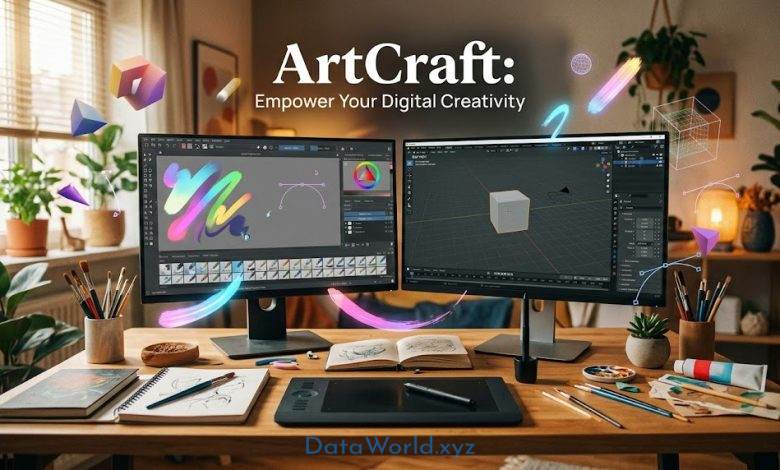
ArtCraft Without Limits: Top Free & Open-Source Tools for Digital Creators
Discover Free Open-Source Tools for Creators
Unlock your full creative potential with our curated list of free open-source tools. These powerful digital creation software options offer everything you need for stunning art and design projects. Discover robust open source art software and versatile graphic design suites, all without cost. Embrace the freedom of free creative tools to elevate your work. Whether a seasoned artist or a burgeoning designer, this digital creator software collection empowers anyone seeking high-quality artcraft software free of charge. Start building your masterpieces today!
Empower Your Digital Creativity: The Ultimate Guide to Open-Source ArtCraft Software
In today’s digital age, the demand for digital art, graphic design, illustration, and 3D modeling has reached an all-time high. However, many aspiring artists and creators believe that creating high-quality artwork requires expensive, subscription-based software. Fortunately, that’s no longer the case.
The world of open-source ArtCraft software has grown incredibly powerful, offering feature-rich, professional-grade tools entirely for free. Whether you are a digital painter, graphic designer, 3D enthusiast, or crafting hobbyist, these open-source tools provide everything you need to bring your imagination to life without spending a dime.
In this blog post, we’ll explore the top open-source digital art and crafting software, how to use them, and why they deserve a spot on your creative workstation.
What is Open-Source ArtCraft Software and Why Use It?
“Open-source” means that the software’s source code is publicly accessible, allowing a global community of developers, artists, and enthusiasts to collaborate, improve, and share it freely.
- Completely Free: No hidden costs, trials, or monthly subscription fees.
- Driven by Community: Access to extensive user-made tutorials, brushes, plugins, and troubleshooting support.
- Highly Customizable: Adapt the user interface, shortcuts, and toolsets to fit your personal workflow.
- No Vendor Lock-in: Open-source formats ensure you always own and can access your creative files.
Top 4 Open-Source ArtCraft Software & How to Use Them
To cover the vast landscape of digital ArtCraft—from 2D digital painting to 3D sculpting and vector crafting—here are the finest open-source tools you should try:
1. Krita – The Ultimate Digital Painting & 2D Animation Powerhouse
Krita is globally celebrated as one of the best free painting programs. It is tailored for concept artists, illustrators, matte painters, and comic creators.
- Key Features: Seamless brush engines, stabilizers for smooth lines, extensive layer management, and 2D animation timelines.
- How to Get Started:
- Set Your Canvas: Create a new file (
File > New) and choose your desired resolution (e.g., 300 DPI for high-quality printing). - Explore Brush Engines: Take advantage of Krita’s robust brush presets on the right docker. If your hand shakes, set the Brush Smoothing to Stabilizer in the Tool Options.
- The Pop-Up Palette: Right-click anywhere on the canvas to open Krita’s signature radial wheel to quickly pick colors, brushes, and adjust settings on the fly.
- Layer Work: Utilize separate layers for sketching, coloring, and shading. Try
Alpha Inheritance(the clipping mask feature) to paint without spilling over your lines.
- Set Your Canvas: Create a new file (
2. Inkscape – The Magician of Vector Art & Craft Design
If your creative work involves logos, scalable graphics, typography, or precision patterns for paper-crafting and laser-cutting, Inkscape is the top Adobe Illustrator alternative.
- Key Features: Robust node editing, Bézier curves, path manipulation, and seamless exporting to SVGs.
- How to Get Started:
- Draw Precision Curves: Use the Bézier Curves (Pen) tool in the left toolbar to draw custom shapes and smooth outlines.
- Fine-tune with Nodes: Use the Node Tool to click, pull, or bend any curve to make your designs pixel-perfect.
- Path Operations: Create intricate illustrations by combining basic shapes using commands like
Union,Difference, andIntersectionunder thePathmenu. - Bitmap to Vector: Easily transform a hand-drawn sketch into a vector graphic by selecting your image and clicking
Path > Trace Bitmap.
3. Blender – The Giant of 3D Art, Sculpting & Crafting
From 3D digital sculptures to game design and visual effects (VFX), Blender is a world-class, industry-standard tool.
- Key Features: Poly modeling, natural digital sculpting, camera tracking, and ultra-realistic rendering.
- How to Get Started:
- Primary Modeling: Start in Object Mode, select the default cube, and press
Tabto enter Edit Mode, where you can modify vertices, edges, and faces. - Sculpting Like Clay: Go to the Sculpting tab, grab brushes like Draw, Crease, and Clay, and craft 3D models as if you were working with physical clay.
- Material & Lighting: Head over to the Shading workspace to color, add texture, and use lights to create natural atmospheres before rendering your 3D work.
- Primary Modeling: Start in Object Mode, select the default cube, and press
4. GIMP – High-Quality Photo Editing and Manipulation
GIMP (GNU Image Manipulation Program) is a versatile and reliable choice for photo retouching, graphic design, and texturing.
- Key Features: Advanced image editing, customizable filters, brush systems, and photo restoration tools.
- How to Get Started:
- Photo Touch-ups: Use the Clone and Healing tools to remove blemishes, dust, or unwanted objects.
- Color Correction: Adjust lighting and shadows using the
Colors > CurvesorLevelsmenu to make your image pop. - Applying Artistic Effects: Enhance your projects with unique textures or stylizations by browsing the extensive
Filterslibrary.
Which Tool is Best for Your Creative Path?
| Software | Core Focus | OS | Perfect For |
|---|---|---|---|
| Krita | Digital Painting, Illustration, Animation | Win, macOS, Linux, Android | Illustrators, Comic Artists, Animators |
| Inkscape | Vector Design, Logos, Craft Templates | Win, macOS, Linux | Graphic Designers, Crafters (Cricut/Laser) |
| Blender | 3D Modeling, Sculpting, Animation | Win, macOS, Linux | 3D Artists, Animators, Game Developers |
| GIMP | Image Editing, Graphic Layouts | Win, macOS, Linux | Photo Editors, Web Designers |
Pro-Tips for Starting Your Open-Source Digital Art Journey
- Invest in a Graphics Tablet: While possible to use a mouse, digital painting in Krita or sculpting in Blender feels much more natural and precise with a pen tablet.
- Learn Key Shortcuts: Familiarizing yourself with keyboard shortcuts can shave hours off your projects and create a smoother workflow.
- Pick One and Learn Gradually: Don’t try to master all four at once. Select the tool that fits your current goals and build your skills through practice and online community tutorials.
Conclusion
You don’t need expensive licensing fees to unleash your inner artist. With open-source ArtCraft tools, you have an incredible world of creation right at your fingertips, entirely free.
Download your preferred tool today, start exploring, and have fun building your unique digital creations!